Account mapping is one of the most tedious onboarding tasks in any consolidation setup. Every new entity arrives with its own chart of accounts — different codes, different naming conventions, different structures — and someone has to manually link each account to the group’s common COA before consolidated reporting can begin.
For a group with five entities across Xero, QuickBooks, and MYOB, that’s not a quick task. BrizoConsol’s AI Auto-Map does it for you — and crucially, lets you review every suggestion before anything is applied.
The Old Way: Manual Line by Line
Without automation, account mapping means:
Stop building consolidations in spreadsheets.
BrizoConsol automates multi-entity consolidation — setup in minutes, reports the same day.
- Opening the entity’s COA alongside the group’s common COA
- Matching accounts by name, code, and account type — one by one
- Guessing at ambiguous accounts (is “35 Checking” a Bank account or something else?)
- Repeating the entire process for every new or unmapped entity
- No confidence score — every mapping carries the same implicit weight whether it’s obvious or uncertain
It’s slow, it’s error-prone, and it scales poorly as the group grows.
How AI Auto-Map Works in BrizoConsol
Clicking AI Auto-Map from the Account Mapping screen triggers BrizoConsol’s AI engine to analyse the entity’s chart of accounts and match each account to the group’s common COA — based on account name, account code, and section similarity. The results surface in a reviewable dialog before anything is committed.
33 suggestions, ready to review
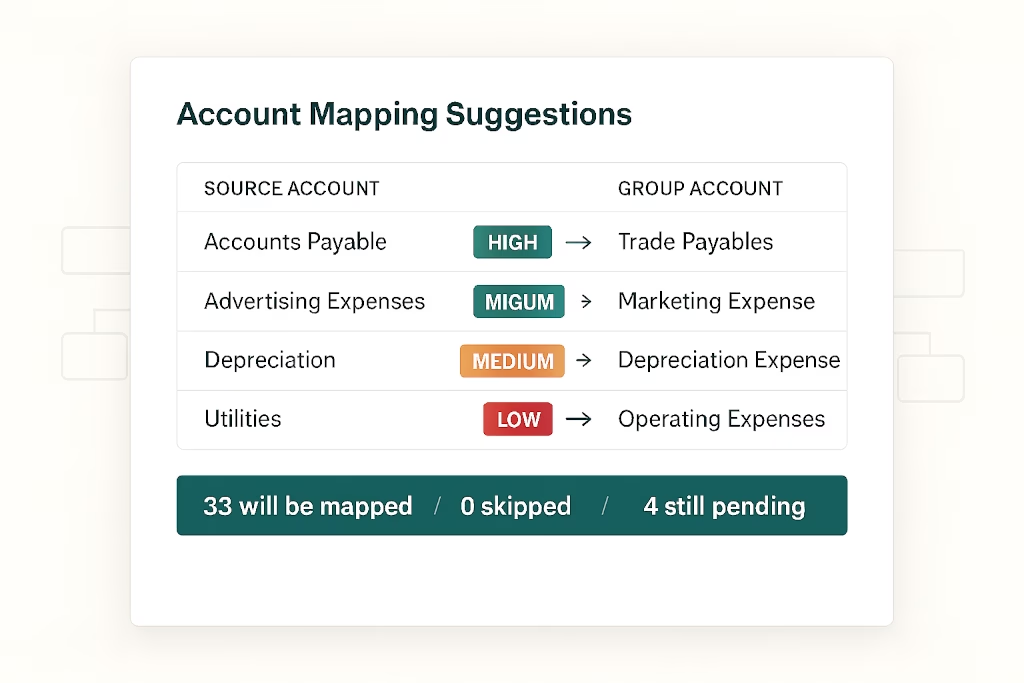
In the example shown, BrizoConsol found 33 mapping suggestions for Demo QuickBooks — matched across account name, code, and section. Each suggestion is presented as a row showing:
- Source account (entity side) — code, name, account type
- Arrow with a confidence indicator (HIGH, MEDIUM, LOW)
- Target account (group common COA side) — code, name, account type
So you can see at a glance: 84 Accounts Receivable (A/R) → HIGH → G-1100 Accounts Receivable. That’s a confident, obvious match. Meanwhile 95 MyJobs_test → LOW → G-1100 Accounts Receivable signals the AI is less certain — giving you a clear prompt to inspect that line before confirming.
You stay in control
Every suggestion comes pre-checked, but you can deselect any mapping you’re not comfortable with before applying. The footer shows the live count:
- 33 will be mapped
- 0 skipped
- 4 still pending
Deselect a row and those numbers update immediately. When you’re satisfied, Confirm & Map (33) applies only what you’ve approved — nothing is committed silently.
Unmapped organisations surface automatically
Unmapped entities are flagged at the top of the Account Mapping screen so nothing slips through between reporting periods. As new entities are added to the group — or existing entities add new accounts after a chart of accounts change — BrizoConsol surfaces them for review rather than letting them quietly produce gaps in the consolidated output.
Confidence Levels Explained
| Level | What it means |
|---|---|
| HIGH | Strong match on name, code, and account type — safe to apply as-is |
| MEDIUM | Good match on most signals — worth a quick review |
| LOW | Partial match — inspect before confirming |
LOW confidence rows are not excluded — the AI still makes a suggestion — but the signal tells your team where to spend their review time rather than checking every single line equally.
What AI Auto-Map Replaces
| Manual mapping | AI Auto-Map |
|---|---|
| Line-by-line matching from memory | AI matches by name, code, and section similarity |
| Equal treatment for all accounts | Confidence scoring directs your review effort |
| New accounts missed until close | Unmapped organisations surfaced automatically |
| Mapping applied immediately with no preview | Full review before a single mapping is committed |
| Repeated for every entity onboarded | One click, review, confirm |
Built Into the Consolidation Workflow
Account Mapping sits inside BrizoConsol’s Global Settings, directly connected to the common COA that drives consolidated reporting. Once accounts are mapped, they flow through to eliminations, CTA, NCI calculations, and consolidated financial statements — without any further manual intervention.
AI Auto-Map means your team gets to that state faster, with more confidence, and with fewer gaps.
Onboard a new entity, run AI Auto-Map, and go from unmapped to consolidated-ready in minutes — not hours. Learn more about BrizoConsol or see it in action →